How to Get to the Startup Menu in Windows 10 or 11
Learn how to get to the startup menu in Windows 10/11, and fix boot issues fast.

Understanding the Startup Menu
The startup menu in Windows is your doorway into the Windows Recovery Environment. It’s where you can fix common boot problems and undo changes that broke Windows. If you’re trying to learn how to get to the startup menu, this is the key idea: you’re not just seeing “a screen.” You’re entering recovery tools.
From the startup area, you can choose options like Safe Mode and Startup Repair. You can also run System Restore, reset certain settings, or open Command Prompt. These Advanced Startup Options are designed for situations where Windows can’t start normally.
In many cases, the menu appears automatically after Windows fails to boot a few times. That means you can often fix issues without needing extra tools. Still, it helps to know multiple ways to access it when the automatic path doesn’t work.
- Safe Mode loads Windows with limited drivers and services.
- Startup Repair attempts to repair broken boot files.
- System Restore rolls Windows back to an earlier point.
- Command Prompt lets you run troubleshooting commands.

Accessing the Startup Menu in Windows 10
In Windows 10, one of the simplest answers to “how do I get to my startup menu” is through Settings. Microsoft placed the entry point under the Recovery section. You can reach it even when Windows runs normally.
Follow this path exactly: Settings > Update & Security > Recovery > Restart now (Advanced startup). Windows will reboot into the recovery tools.
If you’re troubleshooting Windows Recovery Environment issues, this route is usually the least stressful. You don’t need any key presses, and it doesn’t rely on Windows failing to boot first. It’s also the fastest way to get into startup menu when you know you’ll need advanced tools.
- Open Settings from the Start menu.
- Go to Update & Security.
- Select Recovery.
- Under Advanced startup, choose Restart now.
Tip: if you don’t see “Advanced startup,” use the Windows search bar inside Settings. Type “recovery” and open the Recovery page.
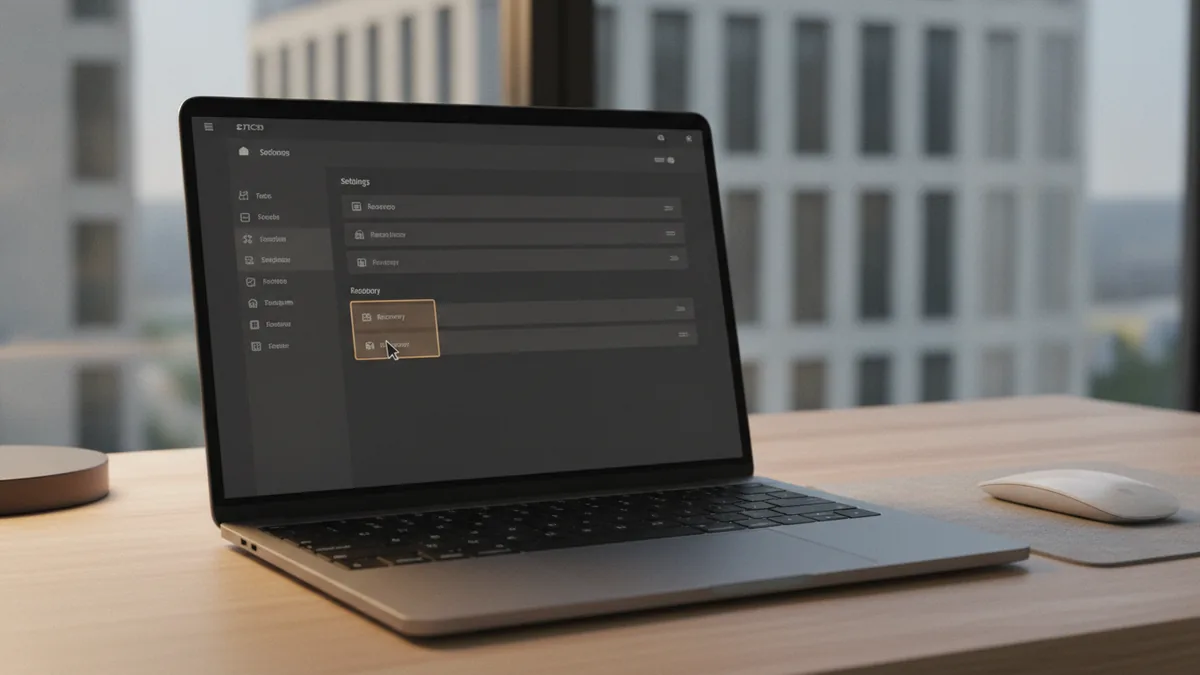
Accessing the Startup Menu in Windows 11
Windows 11 keeps the same recovery goal, but the navigation is slightly different. When people search “how to go to startup menu” on Windows 11, they usually want the settings path that triggers a reboot into Advanced Startup Options.
Use this route: Start > Settings > System > Recovery > Advanced startup > Restart now. After the restart, you’ll land in the troubleshooting screen.
This works well when Windows still loads, but you need access to recovery tools. It’s also helpful before you attempt bigger fixes, like driver changes or system updates. Knowing how to get into startup menu from Windows 11 saves time later.
- Look for Advanced startup under Recovery.
- Choose Restart now to enter the options screen.
- Pick Troubleshoot to see the core recovery tools.
Troubleshooting through the Startup Menu
Once you’re in the startup menu, the options are meant to solve specific problem types. If Windows won’t boot at all, you’ll likely start with Startup Repair. If a recent change caused failures, System Restore can help undo it.
When you select Safe Mode, Windows starts with fewer drivers and services. This can help you uninstall a bad update, roll back a driver, or run virus scans. For users who keep asking “how do I get to my startup menu” because Windows is unstable, Safe Mode is often the first practical test.
Command Prompt is the tool for advanced troubleshooting. You can use it to check boot-related settings, run repair tools, or explore system files. It’s also useful if you’re comfortable with commands and want more control than the guided tools provide.
| Goal | Option to use | When it helps |
|---|---|---|
| Fix boot errors | Startup Repair | Windows won’t start normally or shows boot-related errors |
| Undo a bad change | System Restore | Problems began after updates, driver installs, or config changes |
| Diagnose with fewer drivers | Safe Mode | Crashes, blue screens, or driver conflicts during startup |
| Run manual repair steps | Command Prompt | You need to run deeper checks or repair tools |
If Windows fails to boot multiple times, it may automatically bring you to the startup menu. That is a common behavior after two or three failed startup attempts. Don’t assume it will always work, but it’s a clue that recovery tools are ready.

Different Ways to Enter Advanced Startup Options
If you can’t reach the recovery menu from Windows settings, you still have several routes. These methods are designed for “Windows won’t boot” situations. They also answer “how to get into startup menu” when your usual path fails.
One common method is using installation media. Create a Windows installation USB or DVD, then boot from it. When the installer loads, choose Repair your computer, then navigate to Troubleshoot and Advanced options.
Another route is using key presses during startup. Depending on your device, you may be able to reach recovery tools with F11. On many systems, holding Shift while choosing Restart from Windows also works, as it forces the advanced startup path.
- From Settings: use Restart now under Advanced startup.
- Forced restart: hold Shift while selecting Restart.
- Boot from media: start the installer, then choose Repair your computer.
- Device keys: try F11 on compatible systems.
Also remember that Windows Recovery Environment menus can look a little different by build. But the core set of tools stays consistent: recovery, troubleshooting, Safe Mode, and boot settings.
Tips for Accessing the Startup Menu
To avoid getting stuck, plan your access method before you need it. If Windows is stable, use the settings path first on both Windows 10 and Windows 11. It’s more predictable than key presses and doesn’t rely on failed startups.
If Windows is failing repeatedly, try to enter recovery within the first minute of boot attempts. When Windows starts, you may see manufacturer logos briefly, and keys like F11 are often recognized then. Timing matters, and repeated attempts can help find the moment your system listens for the key.
Finally, if you’re using installation media, keep it ready on a USB drive. That way, you don’t have to scramble while troubleshooting. Once you reach Troubleshoot, write down the option you’ll try next so you can repeat steps cleanly.
- Use the Settings route when Windows still boots.
- If you can’t boot, prepare installation media in advance.
- Try F11 or Shift+Restart on supported devices.
- Start with Startup Repair before deeper manual steps.
Quick takeaway
Knowing how to get to the startup menu means you can recover when Windows misbehaves. Use Settings when you can. Use boot tools when you can’t.
Frequently asked questions
- How do I get to my startup menu in Windows 10?
- Go to Settings > Update & Security > Recovery. Select Restart now under Advanced startup to enter the recovery menu.
- How to get to the startup menu in Windows 11?
- Open Start > Settings > System > Recovery. Under Advanced startup, choose Restart now to access Advanced Startup Options.
- How do I get into startup menu if Windows won’t boot?
- Use Windows installation media to start the installer. Choose Repair your computer, then open Troubleshoot to reach Advanced options.
- Can I open startup menu using keyboard keys like F11?
- On many systems, F11 can open recovery during startup. Device support varies, but it’s worth trying during the early boot screen.
- What should I do first in the startup menu when Windows fails to start?
- Start with Startup Repair if Windows can’t boot normally. If the problem started after a change, try System Restore next.
- How does Safe Mode help when Windows is unstable?
- Safe Mode starts Windows with fewer drivers and services. It can help you remove a bad driver or fix system issues without normal startup interference.
Related reading

Start a Mobile Drug Testing Business (Without a Lab)
Build a mobile testing service with sound training, lab links, and clear pricing.

Start a Business with a Problem Worth Solving
Turn a useful idea into a business with clear steps, sound research, and steady resolve.

Loft Conversion Timelines — What Affects the Build
Typical build times range from four to twelve weeks, plus planning and setup.