How to View, Edit, and Disable Windows Startup Programs
See what starts with Windows, then disable what you do not need.
Understanding how startup programs affect performance
Startup programs begin running when Windows boots or when you sign in. They can include apps, updaters, sync tools, and background helpers. This is why your PC can feel slower right after login when many items start at once.
When too much runs early, Windows has less time for the sign-in flow. You might see longer “spinning” time, delayed access to network drives, or slower launches for common apps. It can also create extra background load that stays after boot.
The goal is simple. You should stop unnecessary apps from starting automatically. Keep the tools you actually need, like security and device helpers, enabled.
To do that, you need two things: visibility and control. Windows gives you a few built-in places to view startup items and change them.

How to view startup programs in Task Manager
The easiest way to answer how to view startup programs is Task Manager. Open it with Ctrl + Shift + Esc, then go to the Startup Apps tab. You will see a list of items that can start with Windows.
Task Manager also shows Startup Impact for each app. It uses three levels: Low, Medium, and High. Use this as a quick guide for how to disable unnecessary startup programs.
If your goal is how to stop windows startup programs, focus on the ones with High impact first. Then reboot and see whether your desktop feels faster. After that, you can check Medium impact items in the same way.
When you plan changes, do not disable everything at once. Keep essential tools working while you test. A password manager, VPN client, or device driver helper might need time to evaluate.
- Low impact: often safe, but can still be disabled if you never use it.
- Medium impact: common for chat, sync, and updater tools.
- High impact: best candidates for how to turn off windows startup programs.
Tip: If you disable something and later need it, you can re-enable it in Task Manager.
How to change or turn off startup programs with Task Manager
Once Task Manager is open, it is how do i change windows startup programs in practice. Right-click an item you want to control, then choose Disable or Enable. This is the simplest method for how to modify windows startup programs without extra tools.
If you want to interrupt windows startup, the disable step is your control point. Windows will stop launching that item on the next boot or next sign-in. It does not affect the app if you manually start it after login.
To improve Windows startup time, change a small set of items and test. Disable a few High impact apps, reboot, and then compare your login feel. If you still want more speed, repeat with Medium impact items.
This is also how to manage windows startup programs without touching the registry. You can stay in the UI and avoid risky edits. For many users, this covers everything they need.
- Open Task Manager and go to Startup Apps.
- Sort by Startup Impact and pick High or Medium items.
- Select items and choose Disable.
- Reboot and test sign-in speed and app responsiveness.
| Want to achieve | Best setting change | What to watch after reboot |
|---|---|---|
| How to increase Windows startup speed | Disable High impact items | Time until desktop is responsive |
| How to reduce windows startup time | Disable a few Medium impact items | Login smoothness and app launch speed |
| How to stop windows startup programs safely | Disable one group at a time | Printers, network access, and sign-in helpers |

How to configure Windows startup programs in Settings
Windows can also show startup controls inside System Settings. Some builds mirror what you see in Task Manager. If you prefer a guided UI, this is how to configure windows startup programs without a dense list.
Start by opening Settings and searching for “startup”. Look for a page that lists startup apps. If you find it, you can usually toggle items on or off in the same way as Task Manager.
This method helps when you are trying to find how to access Windows startup programs for one specific app. If a toggle exists in Settings, it confirms that the item is being managed by Windows startup controls.
If the item is not present in Settings, it may still be managed elsewhere. That is common for scripts or older entries that only show in other locations.
How to access windows startup folder and edit entries
Some startup entries do not show up in Task Manager. In those cases, you may need the Startup folder. This is the practical path for how to access windows startup folder and how to edit windows startup programs.
Startup locations exist for a user profile and for all users. The user profile folder affects only your account. The all-users folder affects every Windows account on the PC.
To access the folder quickly, open File Explorer and paste the path into the address bar. Then look for shortcut files like .lnk that launch apps or scripts. From there, you can move items out to stop them from starting next sign-in.
Always be cautious. If a shortcut belongs to a core tool, removing it could break an expected feature. When unsure, move it to a safe backup folder rather than deleting it.
- Open File Explorer.
- Paste the user startup path into the address bar.
- Look for shortcuts inside that folder.
- Move suspicious items to a temporary backup folder.
User profile startup path: %APPDATA%\Microsoft\Windows\Start Menu\Programs\Startup
All users startup path: %PROGRAMDATA%\Microsoft\Windows\Start Menu\Programs\Startup
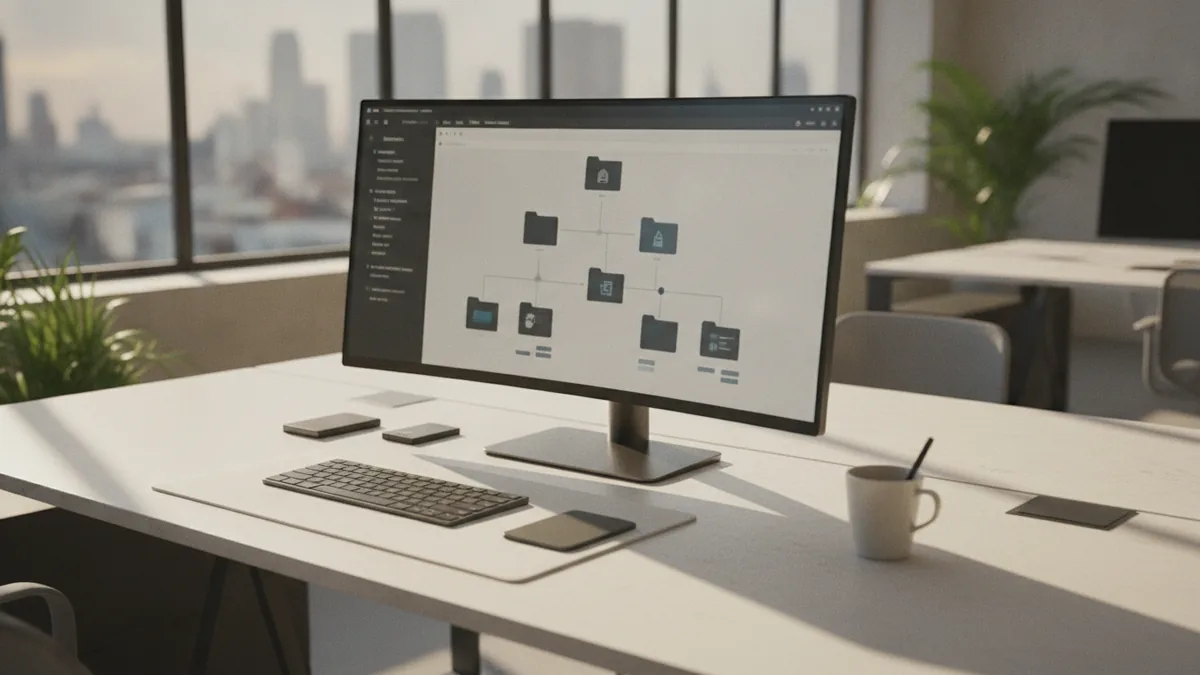
Using Autoruns for comprehensive startup management
When you want deeper control, use Autoruns Utility. It shows far more than Task Manager. This is a strong answer to how to configure windows startup when built-in views are incomplete.
Autoruns can reveal startup entries in multiple areas, including ones that do not behave like simple apps. That can help when you suspect something starts with Windows but you cannot find it in Task Manager.
Use Autoruns carefully. Disable only what you understand, then test after reboot. If you are not sure, note the entry name and leave it enabled until you confirm its purpose.
If your goal is how to manage windows startup programs at scale, Autoruns gives you a structured way to audit everything. It is also useful when you are trying to find why a system feels slow even after basic disables.
- Start with Autoruns, then look at categories tied to boot and logon.
- Disable the specific entry you want to stop.
- Reboot and verify that your system still works as expected.
- If needed, re-enable and try a different item.
Troubleshooting startup program problems and risky cases
Sometimes the startup issue is not a normal app toggle. A service, a background task, or a broken entry can still cause delays. This is where a careful troubleshooting path helps, especially if startup does not change after you disable items.
First, confirm that your changes actually took effect. Reboot after each round of disables. Then check Task Manager again to see whether the item still lists as enabled.
If the item never appears in Task Manager but it still runs, look at the Startup folders and Autoruns. That combination covers most cases where how to see Windows startup programs is harder.
For registry entries, proceed with caution. Windows stores boot-related startup settings in registry keys, and changing them can cause boot failures. If you choose to edit the registry, create a backup first, then change one value at a time.
Finally, consider whether the real issue is app behavior after boot. Some tools start quickly, then continue heavy work for minutes. Disabling them can still help you how to improve Windows startup time, even if the desktop looks normal at first.
Tip: If you need to repair windows startup problem symptoms, start by disabling High impact items and testing reboot by reboot.
FAQ: common questions about changing Windows startup apps
How do I change Windows startup programs?
Use Task Manager to disable or enable items. For entries not listed there, use the Startup folder or Autoruns to stop them.
How to disable unnecessary startup programs without breaking sign-in?
Disable a few items with High impact first. Reboot and confirm your essentials still work, like network access and security tools.
How do I interrupt Windows startup if an app keeps launching?
Disable the startup entry in Task Manager or remove the shortcut from the Startup folder. If it still starts, use Autoruns to find the hidden entry.
How to access Windows startup programs when I cannot find them?
Check Task Manager, then check Settings if available. If it is still missing, use the Startup folder paths and Autoruns.
Can I remove startup programs from the registry?
Yes, but it is risky. Prefer Task Manager, Startup folders, and Autoruns first, then only edit the registry with a backup.
How do I turn off Windows startup programs and increase startup speed?
Disable High and then some Medium impact items. Test after each reboot and keep a short list of disabled apps you might need later.
Step-by-step
- 01 Open Task Manager and review startup apps
Open Task Manager with Ctrl + Shift + Esc. Check the Startup Apps tab to see what runs at boot or sign-in.
- 02 Disable High impact startup apps
Sort by Startup Impact and pick items marked High. Disable them, then reboot to test the effect on your login speed.
- 03 Tune Medium impact items in small batches
If startup still feels slow, disable a few Medium impact items. Reboot again and confirm you did not break key tools.
- 04 Check Settings for matching startup toggles
Open Settings and search for startup apps. Toggle entries there if they exist, especially when you want a simpler workflow.
- 05 Use the Startup folder for items not listed
Open File Explorer and paste the Startup folder path. Move unwanted shortcuts to a backup folder instead of deleting them.
- 06 Audit with Autoruns when you cannot find the entry
Run Autoruns to inspect additional startup locations. Disable only what you understand, then test after reboot.
Frequently asked questions
- How do I change Windows startup programs?
- Use Task Manager to disable or enable items. For entries not shown there, use the Startup folder or Autoruns.
- How to disable unnecessary startup programs in Windows?
- Disable High impact items first in Task Manager. Reboot and verify your essentials still work.
- How do I interrupt Windows startup if an app keeps launching?
- Disable its startup entry or remove its shortcut from the Startup folder. If it still starts, use Autoruns to find the hidden entry.
- How to access Windows startup programs when I cannot find them?
- Start with Task Manager and then check Settings if it has startup toggles. Next, use the Startup folder and Autoruns for deeper discovery.
- Is it safe to edit registry entries to control startup programs?
- Registry edits can be risky. Prefer Task Manager, Startup folders, and Autoruns first, then only edit the registry with a backup.
- How to improve Windows startup time after changing startup apps?
- Change a small set of items, reboot, and compare login responsiveness. Keep notes so you can undo changes quickly if needed.
Related reading

Start a Mobile Drug Testing Business (Without a Lab)
Build a mobile testing service with sound training, lab links, and clear pricing.

Start a Business with a Problem Worth Solving
Turn a useful idea into a business with clear steps, sound research, and steady resolve.

Loft Conversion Timelines — What Affects the Build
Typical build times range from four to twelve weeks, plus planning and setup.