How to Disable Startup Apps in Windows 11, 10, and 7
Disable startup apps in Windows to speed boot time and improve PC performance.
Understanding Startup Programs
Yes, you can stop apps from launching at startup. Startup programs are applications that automatically start when Windows boots, before you even sign in to your desktop. They often include updaters, chat tools, cloud sync, printer helpers, and quick-launch utilities.
Some startup apps are helpful, like a keyboard driver or a security tool. Others run just to check for updates or show notifications. When you learn how do i stop programs at startup, you are mainly choosing which apps you really need at boot.
On modern Windows operating systems, those apps are tracked in a few common places. They can be triggered by Startup folders, services, scheduled tasks, or the program’s own “run at startup” setting. The most common place you can control is the list shown by Windows.
Impact of Startup Programs on Performance
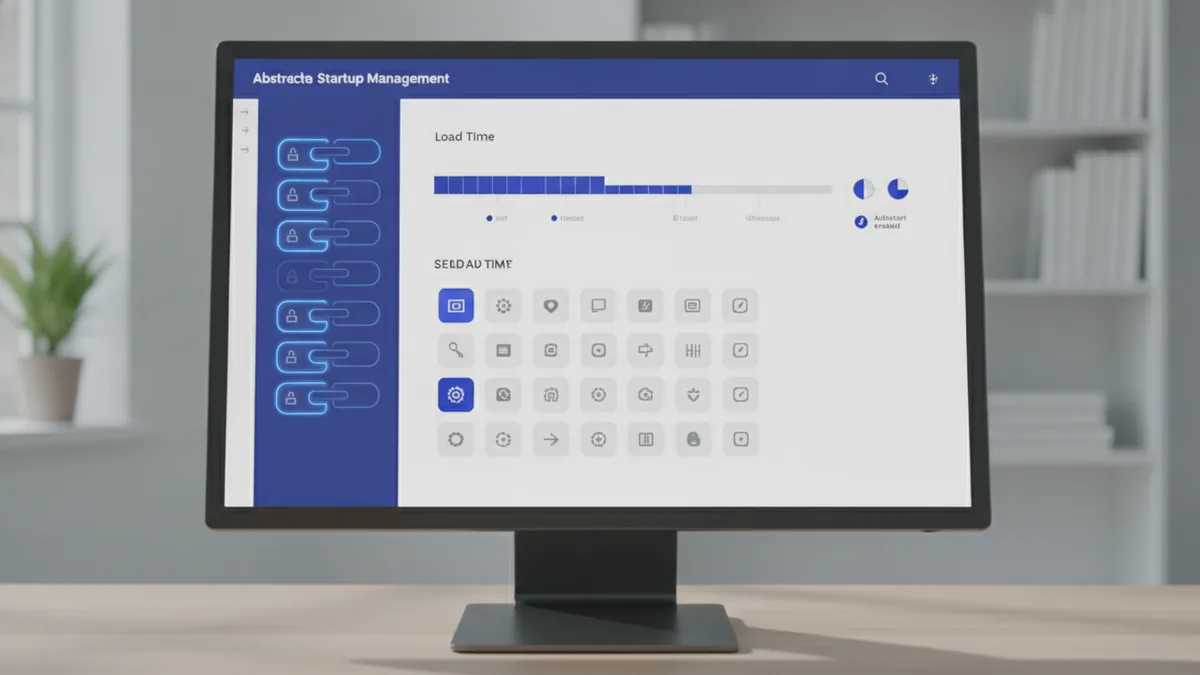
Excessive startup programs can slow down boot times and degrade system responsiveness. During boot, Windows has to load drivers, start services, and initialize user sessions. Startup apps then compete for CPU time, disk access, and network connections.
In practice, this shows up as a “slow login” experience. Your desktop may appear, but app icons, browser tabs, or background tools may lag. Many users then force-close apps, which can make the issue feel worse.
Task Manager provides useful startup impact signals. It can show which apps have a “High” or “Low” startup impact rating. That helps you focus on the biggest contributors first instead of disabling everything at once.
- More apps at boot usually means more processes competing for CPU and disk.
- Network-heavy tools can add delays while they check services.
- Updaters can spike CPU usage and write temporary files during login.
- Background up to date checks can feel like “PC stuttering” after boot.
How to Disable Startup Programs in Windows 11
If you are on Windows 11, the easiest route is via Settings. Start with a quick check for any apps you no longer need running immediately. You can then fine-tune with Task Manager if you want more detail.
To do it in Windows Settings, open Settings and go to Apps, then Startup. You will see a list of apps that can start automatically. Toggle off any apps you do not need at boot.
For deeper control, use Task Manager. This is also where you can answer how do you stop programs from starting on startup when you want to match results with the “startup impact” column. Be selective, especially with security, audio, graphics, and device utilities.
- Open Settings.
- Go to Apps.
- Select Startup.
- Switch off apps you do not need immediately.

How to Disable Startup Programs in Windows 10
Windows 10 also includes a Settings view, but Task Manager often gives the most actionable information. If your main goal is faster booting, start by disabling obvious extras first. This is one of the best ways to stop app from launching on startup without changing system files.
To use Settings in Windows 10, open Settings, then Apps. Go to Startup and toggle off items you do not want. If you want to understand why the boot feels slow, Task Manager can show which app is costing the most time.
When you search for how to stop a program from loading at startup, you are usually trying to disable its autostart entry. Task Manager disables the startup entry cleanly, and it is easy to re-enable later if something breaks.
- Open Settings.
- Select Apps.
- Open Startup.
- Turn off unnecessary startup apps.
Disabling Startup Programs in Windows 7
Windows 7 does not have the modern Settings and Startup controls found in Windows 10 and 11. Instead, you typically use the System Configuration utility, called msconfig. This tool lets you disable autostart entries and reboot to apply changes.
To begin, open the Start menu and type msconfig. Open System Configuration, then go to the Startup tab. You will see a list of items that launch at boot, including their publisher names if available.
When you learn how to stop programs from booting on startup in Windows 7, the key is careful selection. Disable non-essential items first, then restart and test. If a needed feature stops working, you can re-enable it and try again.
- Disable one category of apps at a time to isolate the cause.
- Leave security and core system utilities enabled.
- Restart after each batch of changes, not after every single item.
Managing Startup Programs via Task Manager
Task Manager is the best “single pane of glass” for controlling how to stop programs launching at startup. It works well on Windows 10 and Windows 11. You can see what is enabled, what was recently added, and the startup impact rating.
To open it, right-click the taskbar and choose Task Manager. Then find the Startup Apps (Windows 11) or Startup tab (Windows 10). Select an app and click Disable to prevent it from starting next boot.
Task Manager also helps you prioritize. If a program shows “High” startup impact, it is usually the best candidate to disable first. If you see a “Low” rating, it may still be worth disabling if you want a cleaner boot, but start with the highest impact items.
| Task Manager signal | What to do |
|---|---|
| High startup impact | Disable if it is not required at login. |
| Medium startup impact | Consider disabling after testing basics. |
| Low startup impact | Disable only if you want fewer background tasks. |
| Status is Enabled | Decide if you need it immediately after boot. |
Be cautious not to disable critical system software during this process. If you see entries for drivers, system components, or your security suite, keep them enabled unless you understand what they do. This caution protects user experience improvement and avoids “blank” utilities you rely on later.
Best Practices for Optimizing Startup
Think of startup tuning as an audit, not a one-time cleanup. After you disable a few items, restart and observe your PC performance. Notice login time, desktop responsiveness, and whether your usual tools still work.
It helps to use a methodical approach. Disable a small batch, reboot once, then repeat. This prevents you from guessing which app caused an issue if something fails to load.
Also, review startup changes after installing new software. Many apps add an autostart option by default. A short check after each installation is often faster than chasing a slow boot weeks later.
- Disable only non-essential apps first.
- Restart and test before making more changes.
- Re-enable anything you need, then try again with fewer items.
- Do a monthly startup audit to keep boot times stable.
If you want to stop programs from launching at startup but you are not sure what an app does, check the publisher and its purpose. You can also look at what the app provides, like syncing files or managing peripherals. This makes it easier to decide which launchers improve workflow and which just slow things down.
FAQ
How do i stop programs at startup in Windows 11?
Open Settings, then go to Apps and Startup. Toggle off apps you do not need immediately.
How do you stop programs from starting on startup in Windows 10?
Use Task Manager’s Startup tab and disable items you do not need. You can also use Settings under Apps and Startup.
How to stop a program from loading at startup?
In Task Manager, find the app on the Startup tab and choose Disable. That prevents the autostart entry from launching next boot.
How to stop app from launching on startup in Windows 7?
Use System Configuration (msconfig). Open the Startup tab, uncheck items you do not need, then restart.
What if I disable something important?
Re-enable it in the same tool where you disabled it. For Windows 10 and 11, you can turn it back on in Task Manager.
Will this improve PC performance?
Often yes, especially if you disable several high-impact startup apps. You may notice faster login and smoother desktop responsiveness.
Frequently asked questions
- How do i stop programs at startup in Windows 11?
- Open Settings, then go to Apps and Startup. Toggle off the apps you do not need right away.
- How do you stop programs from starting on startup in Windows 10?
- Use Task Manager’s Startup tab to disable unwanted apps. Settings under Apps and Startup also works for quick toggles.
- How to stop a program from loading at startup?
- Find it in Task Manager’s Startup list, then choose Disable. Re-enable it later if you notice a missing feature.
- How to stop programs from booting on startup in Windows 7?
- Use System Configuration (msconfig), open the Startup tab, and uncheck items. Restart to apply your changes.
- Is it safe to disable startup apps?
- It is safe if you disable non-essential items. Avoid critical system software like drivers and security tools.
- Will disabling startup apps improve PC performance?
- Often yes, especially when you disable high-impact apps. You may see faster login and smoother desktop interaction.
Related reading

Start a Mobile Drug Testing Business (Without a Lab)
Build a mobile testing service with sound training, lab links, and clear pricing.

Start a Business with a Problem Worth Solving
Turn a useful idea into a business with clear steps, sound research, and steady resolve.

Loft Conversion Timelines — What Affects the Build
Typical build times range from four to twelve weeks, plus planning and setup.